
Largest screen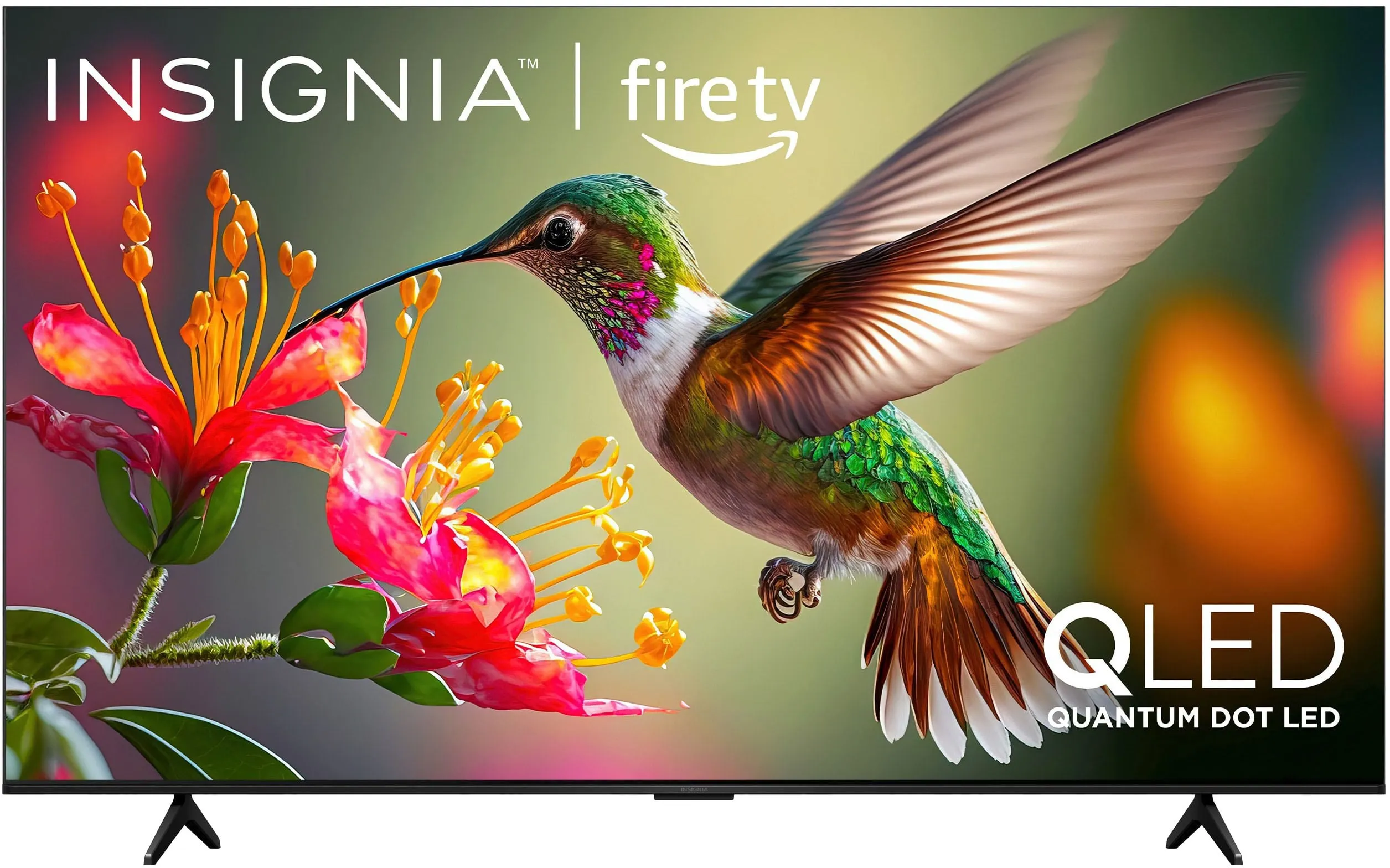
QF Series85″
QF 85-inch
Model NS85-UQFL27
The QF at its biggest. Quantum dot colour, Dolby Vision and Dolby Atmos, with a frame thin enough to stay out of the picture.
- QLED panel
- Dolby Vision + Atmos
- Fire TV built in
Insignia TV · Official website
Insignia TV makes 4K Fire TVs from 50 to 85 inches: QLED, Mini LED, and the plain good-value kind. This is the official site, and every set is ordered direct through the Insignia TV store.
Start here
Two big QLED screens, one Mini LED for dark rooms, and a 70-inch that covers the basics without looking like it.
Model NS85-UQFL27
The QF at its biggest. Quantum dot colour, Dolby Vision and Dolby Atmos, with a frame thin enough to stay out of the picture.
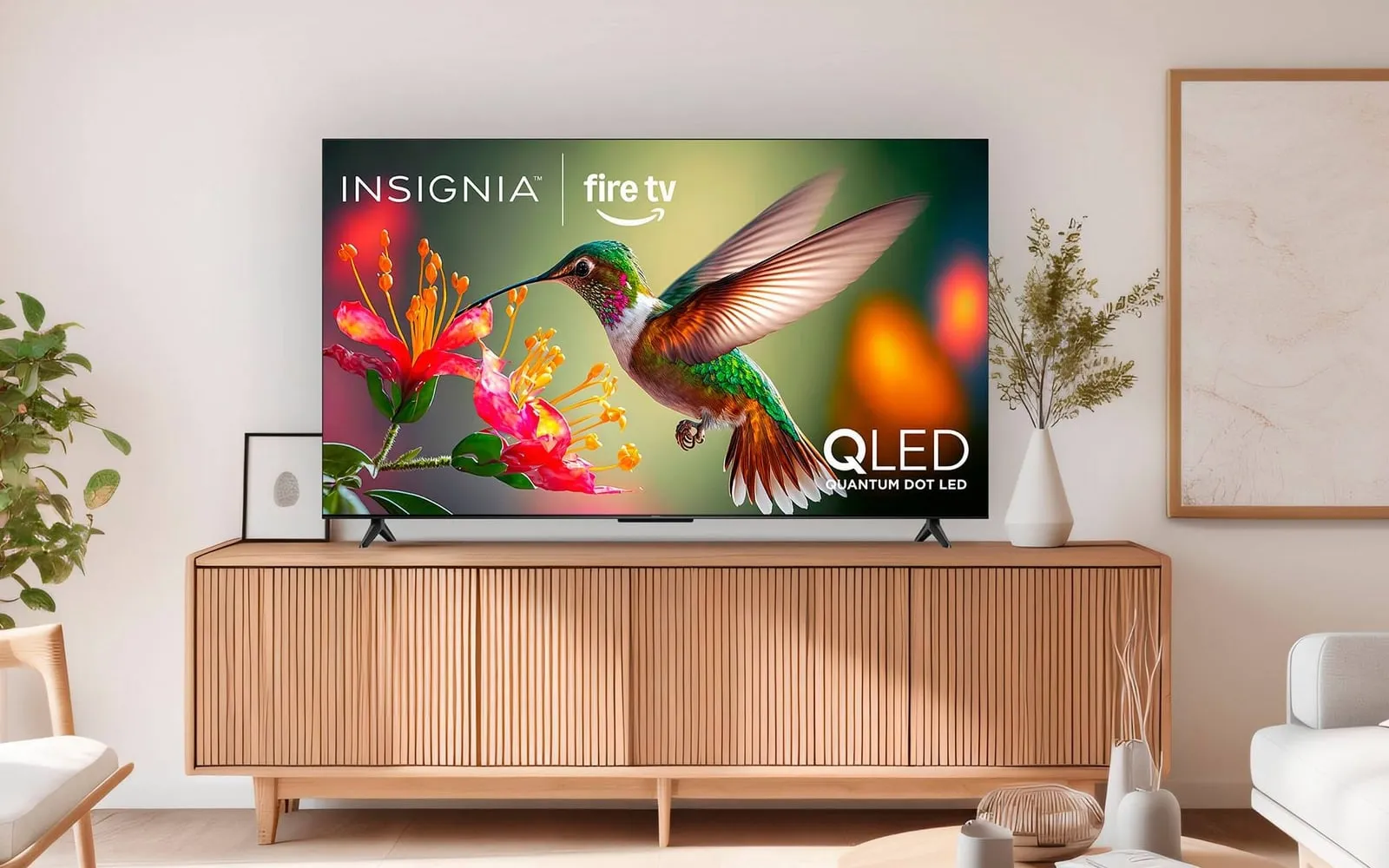
Model NS75-UQFL26
The size most living rooms can take. QLED colour and a 60Hz panel, with the Fire TV interface and Alexa remote in the box.
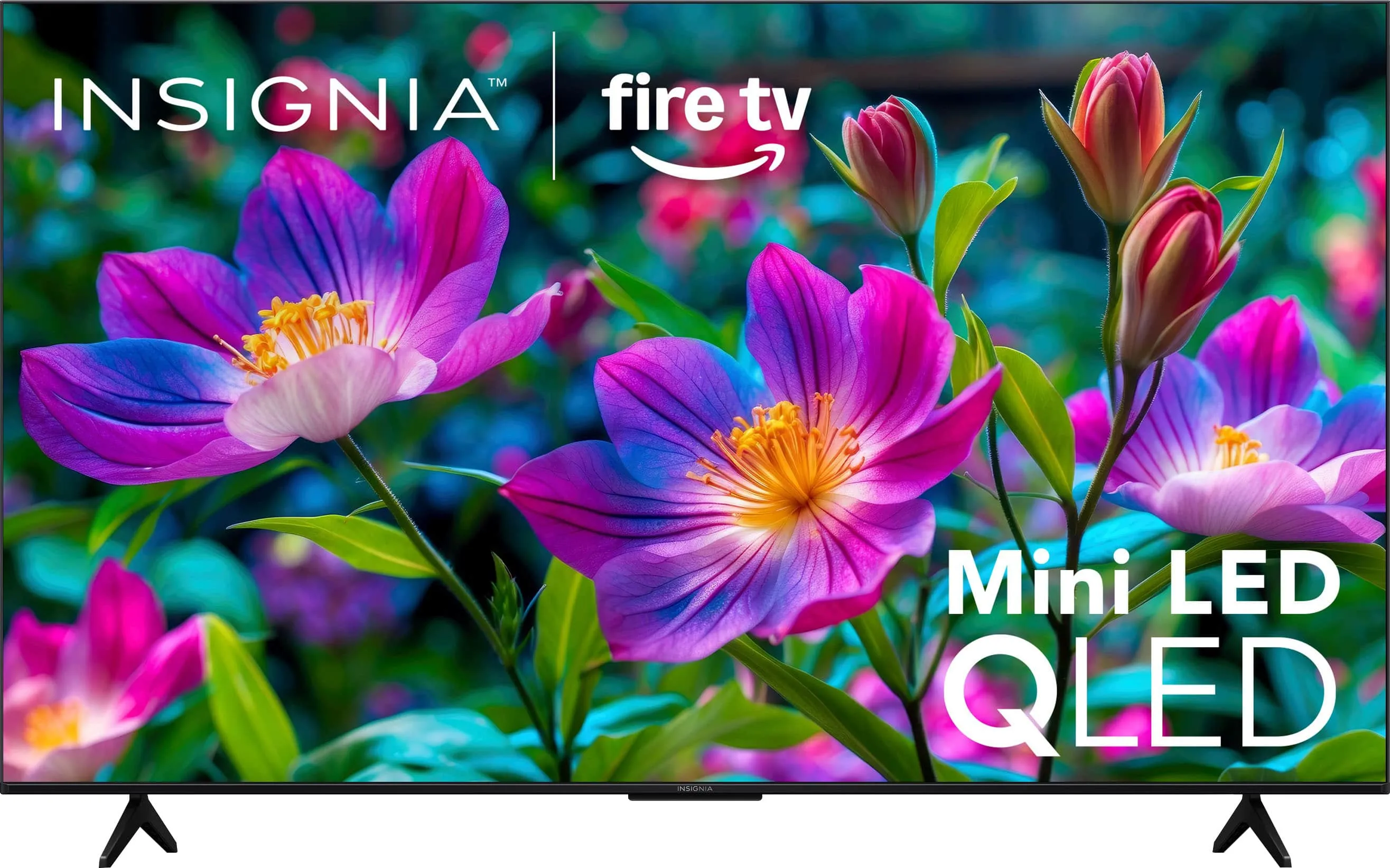
Model NS-65F701NA24
A Mini LED backlight behind a QLED panel. Zones dim on their own, so a night scene keeps its shadows instead of washing out.
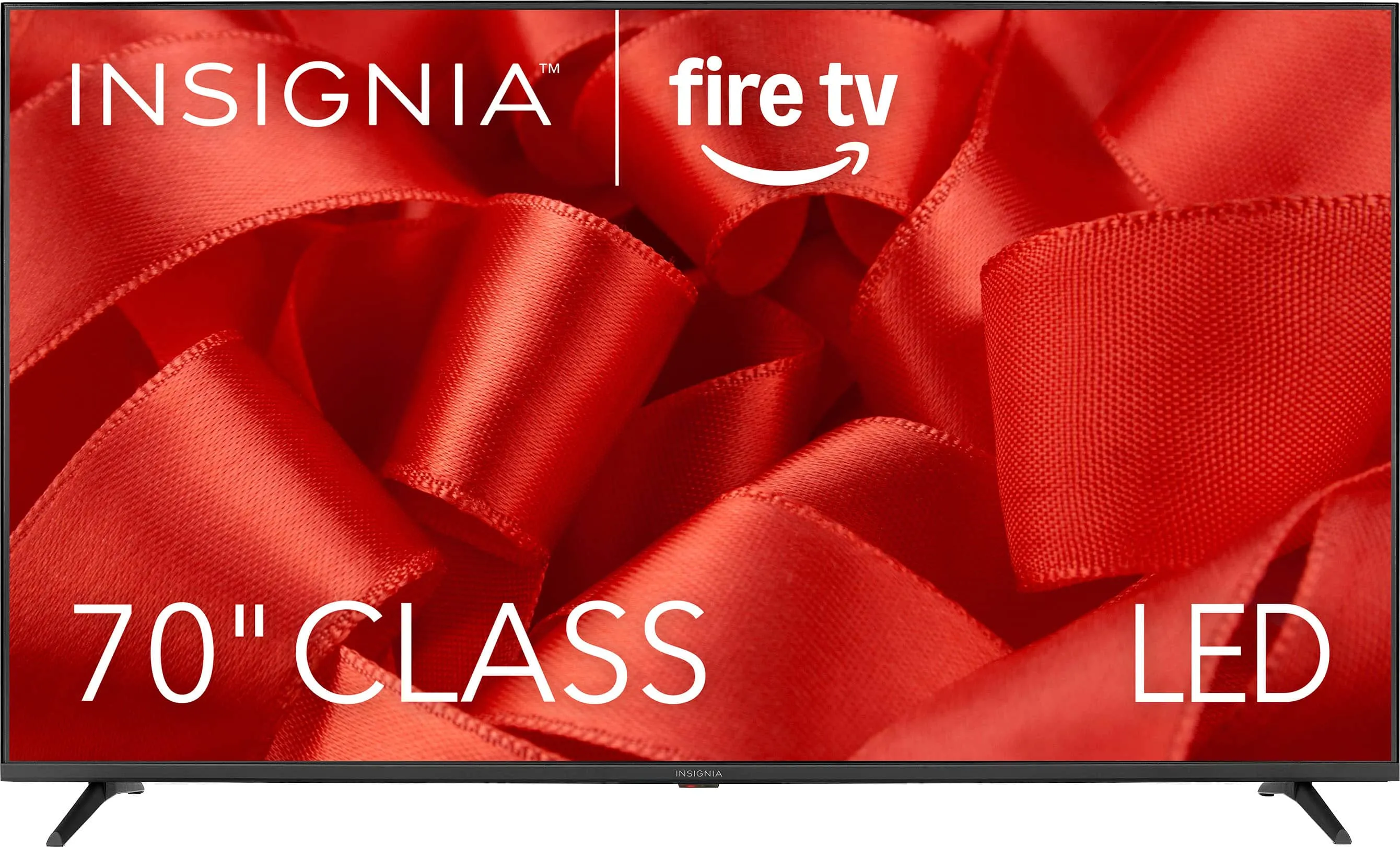
Model NS-70F501NA24
A large 4K panel with Dolby Vision, HDR10 and HLG. Direct-lit, Fire TV built in, and no features you will never open.
The range
The series name tells you most of what you need. QF is the QLED line, F70 adds a Mini LED backlight, F50 is the everyday 4K set.
55, 75, 85 inches
Quantum dot colour, 4K, Fire TV.
The line most people land on. Dolby Vision and Dolby Atmos, a thin metal frame, and enough brightness for a room with windows.
See the QF Series65 inches
Mini LED backlight with QLED colour.
One size, built for contrast. Hundreds of small LEDs dim in zones, so night scenes keep their shadow detail.
See the F70 Series50, 55, 65, 70 inches
4K HDR and Fire TV, without the extras.
Dolby Vision, HDR10 and HLG on a direct-lit panel. The sensible first big TV for a spare room, bedroom or first flat.
See the F50 SeriesInside the panel
Four things worth knowing before you compare model numbers.
QLED sets push more colour out of the panel. Skin stays skin, grass stays green, and the picture holds up in a bright room.
Hundreds of tiny LEDs sit behind the screen and dim in zones. Dark scenes keep their detail instead of turning into soup.
Apps, voice search and casting live in one place. The Alexa remote in the box is the one people actually use.
Dolby Vision, HDR10 and HLG on supported sets. More range between the brightest highlight and the darkest shadow.
Second opinion
“For most users, this TV hits a great balance of performance, features, and price.”
Independent review. Insignia did not pay for or approve this quote.
Already own one?
Insignia TV customer service covers warranty lookup, model numbers, remote pairing and firmware. Start with the questions below, or call and talk to a person.
Questions
Seventeen answers covering setup, picture, sound, remotes and warranty. If yours is not here, call support.
On a Fire TV model, open Settings, then Network, choose your network and enter the password with the on-screen keyboard. The TV remembers the network after the first connection. If the list is empty, move the router closer or restart it and scan again.
Restart the router and the TV, then forget the network and join it again. Check that the password has not changed and that the TV is within range of the 2.4GHz or 5GHz band your router broadcasts. A factory reset is the last step, not the first one.
Put the remote within three feet of the TV and hold the Home button for about ten seconds, or follow the pairing prompt on screen. Fire TV remotes pair over Bluetooth; older infrared remotes need a clear line of sight and no pairing step.
Yes, on Fire TV models. Install the Amazon Fire TV app on your phone, connect both devices to the same Wi-Fi network, and choose your TV from the app. Third-party Insignia remote apps exist, but they are not made or supported by Insignia.
From the Fire TV home screen, open Apps, then Get more apps, or say the app name into the Alexa remote. Paid subscriptions are billed by the app provider, not by Insignia. If an app is missing, check that the TV software is up to date.
On Fire TV, go to Settings, Device & Software, About, then Check for System Update. Other Insignia smart TVs use Settings, System, System Update. Leave the TV powered and connected while it installs; updates usually take a few minutes.
Check the outlet and the power cable first, then hold the power button on the TV itself for ten seconds. Unplug the set for a minute and try again. If there is no standby light and no response, contact support before opening anything.
If you hear sound but see no picture, shine a light at the screen: a faint image means the backlight has failed, while no image at all points to the panel or main board. If there is no sound either, check the input and try another HDMI cable before calling support.
Check the mute state and the volume on both the TV and the source device. Open Settings, Display & Sound, Audio Output and confirm the TV speakers are selected rather than an HDMI or optical device. A power cycle clears most one-off audio faults.
Press the input button and select the port the device is actually plugged into. Reseat the HDMI cable at both ends, then check the source device is outputting a resolution the TV supports. For an aerial or cable feed, run a channel scan from Settings, Channels.
Put the headphones in pairing mode, then open Settings, Remotes & Bluetooth Devices, Other Bluetooth Devices, Add New and choose the headphones. Fire TV models support Bluetooth audio; older Insignia sets may need a Bluetooth transmitter on the audio output.
Fire TV models accept casts from the Amazon Fire TV app and from compatible Android and Windows devices. Apple AirPlay is not built in, so an iPhone needs a third-party receiver app or a cable. Mirroring quality depends on the Wi-Fi network.
Look at the sticker on the back of the TV; the model number starts with NS. You can also open Settings, Device & Software, About on Fire TV, or Settings, System, About on other models. The serial number sits next to the model on the sticker.
Most Insignia TVs carry a one-year limited warranty, but the document in the box is the version that applies. Have the model number, serial number and proof of purchase ready, then call 1-877-467-4289 or email support@insigniatv.world to start a warranty lookup.
Manuals are supplied by Insignia support rather than this site. Email support@insigniatv.world or call 1-877-467-4289 with your model number and we will send the correct Insignia TV manual for your set.
Insignia has sold Roku TV models in the past. The current range shown on this site runs on Fire TV, so setup steps here refer to Fire TV. For an older Insignia Roku TV, use the Roku mobile app and Roku’s own support pages.
Order from the official Insignia TV store at store.insigniatv.world/collection. Every Shop and Check price link on this site opens that collection in a new tab. Support for a set you already own is handled by phone or email, whether you bought it here or somewhere else.
The gap between 65 and 75 inches matters more than most spec-sheet differences. Everything on this site is ordered through the Insignia TV store.